


Showing posts with label ftu kit. Show all posts
Showing posts with label ftu kit. Show all posts
Sunday, June 29, 2014
Let Freedom Ring!
 9:58 AM |
  Posted by
Kaci
Posted by
Kaci

This tutorial was written by Kaci on June 29, 2013. Any resemblance to any other tutorials is purely coincidental! You may not copy/paste any part of my tuts elsewhere, but you may text link to them for challenges etc!
Supplies Needed:
Tube or image of choice, I am using by Creative Tubes by Crys, you must have a license to use these tubes, which you can find out more HERE
Scrap kit of choice, I'm using one by Gimptastic Scraps called Fantastically Free Blog Train Fourth of July, you can find it HERE
Mask of choice
Let's Begin!
Open paper6
Hit shift d and close the original
Promote background to layer
Apply mask of choice
Merge group
Duplicate and resize as desired
Add frame 5
Resize by 80%
Select the inside top of your frame with your magic wand tool, tolerance at 20 and feather at 0, anti alias and contiguous checked
Go to Selections>Modify>Expand by 8
Add paper1 below your frame
Resize by 80%
Invert selection and hit delete
Select none
Add any other embellishments you like
Again use my tag for reference
Resize and position
Resize each to your liking
Add any dropshadows of choice
Merge visible
Resize your tag to your liking
Add your name and any copyright info you need
Save as png!
Thanks for trying my tut

 Labels:

Thursday, February 13, 2014
By The Moonlight

This tutorial was written by Kaci on February 13, 2013. Any resemblance to any other tutorials is purely coincidental! You may not copy/paste any part of my tuts elsewhere, but you may text link to them for challenges etc!
Supplies Needed:
Tube or image of choice, I am using by Zindy, you must have a license to use these tubes, which you can find out more HERE
Scrap kit of choice, I'm using one by Candy's Treats called Moonlight, you can find it HERE
Mask of choice
Let's Begin!
Open starrypaper
Hit shift d and close the original
Promote background to layer
Apply mask of choice
Merge group
Duplicate and resize as desired
Add leaf frame2 dark
Resize by 110%
Select the insides of the frame with your magic wand tool, tolerance at 20 and feather at 0, anti alias and contiguous checked
Go to Selections>Modify>Expand by 10
Add paper moonlight below your frame
Resize by 50%
Invert your selection and hit delete
Select none
Add any other embellishments you like
Again use my tag for reference
Resize and position
Resize each to your liking
Add any dropshadows of choice
Merge visible
Resize your tag to your liking
Add your name and any copyright info you need
Save as png!
Thanks for trying my tut
Supplies Needed:
Tube or image of choice, I am using by Zindy, you must have a license to use these tubes, which you can find out more HERE
Scrap kit of choice, I'm using one by Candy's Treats called Moonlight, you can find it HERE
Mask of choice
Let's Begin!
Open starrypaper
Hit shift d and close the original
Promote background to layer
Apply mask of choice
Merge group
Duplicate and resize as desired
Add leaf frame2 dark
Resize by 110%
Select the insides of the frame with your magic wand tool, tolerance at 20 and feather at 0, anti alias and contiguous checked
Go to Selections>Modify>Expand by 10
Add paper moonlight below your frame
Resize by 50%
Invert your selection and hit delete
Select none
Add any other embellishments you like
Again use my tag for reference
Resize and position
Resize each to your liking
Add any dropshadows of choice
Merge visible
Resize your tag to your liking
Add your name and any copyright info you need
Save as png!
Thanks for trying my tut
Thursday, November 14, 2013
Gobble Tag Showoff!
Here's a tag I made with Tasha's Playground's free kit Good Gobble, available at The PSP Project and tube by FourXDesigns

Wednesday, October 2, 2013
Nature Calling

This tutorial was written by Kaci on October 2, 2013. Any resemblance to any other tutorials is purely coincidental! You may not copy/paste any part of my tuts elsewhere, but you may text link to them for challenges etc!
Supplies Needed:
Template336 by Millie, you can find it HERE
Tube or image of choice, I am using by myself Kaci McVay, you must have a license to use these tubes, which you can find out more HERE
Supplies Needed:
Template336 by Millie, you can find it HERE
Tube or image of choice, I am using by myself Kaci McVay, you must have a license to use these tubes, which you can find out more HERE
Scrapkit of choice, I am using a great kit by Chichi's Designz called Nature Calls, and it's FREE!!! And you can find it HERE
Mask of choice
Let's Begin!
Open your template
Hit shift d and close the original
Delete 9, 8, and background
Resize all layers to 700 on the longest side, I use Smart Size
You can resize it back down once finished :)
Now, go to Image, Canvas Size, and change it to 750x700 centered
Add a new layer and send to the bottom
Select all and paste paper1 into your selection
Select none
Merge group
Select 1
Select all, float, and defloat
Paste paper15 as a new layer
Invert your selection and hit delete
Select none
Delete 1
Select 2
Select all, float, and defloat
Paste paper10 as a new layer
Invert your selection and hit delete
Select none
Delete 2
Repeat for 3
Select 4
Select all, float, and defloat
Paste paper13 as a new layer
Invert your selection and hit delete
Select none
Delete 4
Select 5
Select all, float, and defloat
Paste paper6 as a new layer
Invert your selection and hit delete
Select none
Delete 5
Repeat for 6
Select 7
Select all, float, and defloat
Paste paper3 as a new layer
Invert your selection and hit delete
Select none
Delete 7
Add your tube of choice
Resize and position as desired
Add any elements you like
Resize and position
Add any dropshadows you like
Crop and resize as desired
Add your name and copyright
Resize as desired
Save!
Thanks for trying my tut!
Mask of choice
Let's Begin!
Open your template
Hit shift d and close the original
Delete 9, 8, and background
Resize all layers to 700 on the longest side, I use Smart Size
You can resize it back down once finished :)
Now, go to Image, Canvas Size, and change it to 750x700 centered
Add a new layer and send to the bottom
Select all and paste paper1 into your selection
Select none
Merge group
Select 1
Select all, float, and defloat
Paste paper15 as a new layer
Invert your selection and hit delete
Select none
Delete 1
Select 2
Select all, float, and defloat
Paste paper10 as a new layer
Invert your selection and hit delete
Select none
Delete 2
Repeat for 3
Select 4
Select all, float, and defloat
Paste paper13 as a new layer
Invert your selection and hit delete
Select none
Delete 4
Select 5
Select all, float, and defloat
Paste paper6 as a new layer
Invert your selection and hit delete
Select none
Delete 5
Repeat for 6
Select 7
Select all, float, and defloat
Paste paper3 as a new layer
Invert your selection and hit delete
Select none
Delete 7
Add your tube of choice
Resize and position as desired
Add any elements you like
Resize and position
Add any dropshadows you like
Crop and resize as desired
Add your name and copyright
Resize as desired
Save!
Thanks for trying my tut!
Thursday, April 4, 2013
All Natural

This tutorial was written by Kaci on April 4, 2013. Any resemblance to any other tutorials is purely coincidental! You may not copy/paste any part of my tuts elsewhere, but you may text link to them for challenges etc!
Supplies Needed:
Template Festival of Lights by Millie, you can find it HERE
Tube or image of choice, I am using by Misticheskaya, you must have a license to use these tubes, which you can find out more HERE
Scrapkit of choice, I am using a great kit by Candys Treats called All Natural, which you can find it HERE and it's FREE!!!
Let's Begin!
Open your template
Hit shift d and close the original
Delete cr and background
Resize all layers, Smart Size, to 700 on the longest side
Now go to Image, Canvas Size, and change that to 725x725
That way we have room to work :)
Select 1
Select all, float, and defloat
Paste paperblock3 as a new layer
Invert your selection and hit delete
Select none
Delete 1
Repeat for layers 9 10 and 11
Select 2
Select all, float, and defloat
Paste paper14 as a new layer
Invert your selection and hit delete
Select none
Delete 2
Repeat for 3
Select 4
Select all, float, and defloat
Paste paper11 as a new layer
Invert your selection and hit delete
Select none
Delete 4
Repeat for 5
Select 6
Select all, float, and defloat
Paste paperblock4 as a new layer
Invert your selection and hit delete
Select none
Delete 6
Select 7
Select all, float, and defloat
Paste paper7 as a new layer
Invert your selection and hit delete
Select none
Delete 7
Repeat for 8
Add your tube of choice
Resize and position as desired
Add any elements you like
Resize and position
Add any dropshadows you like
Crop and resize as desired
Add your name and copyright
Resize as desired
Save!
Thanks for trying my tut!
Monday, October 22, 2012
Bewitched
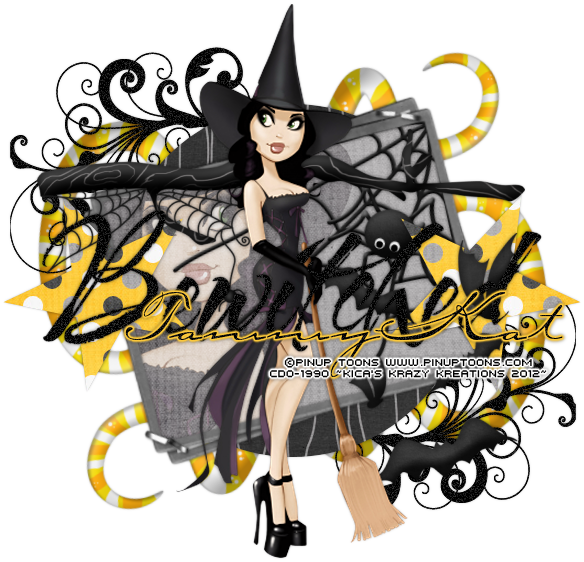
This tutorial was written by Kaci on October 22, 2012. Any resemblance to any other tutorials is purely coincidental! You may not copy/paste any part of my tuts elsewhere, but you may text link to them for challenges etc!
Supplies Needed:
Temp 95 by Kristin, you can find it HERE
Tube or image of choice, I am using a tube by Pinup Toons and you must have permission to use them, you can find out more HERE
Scrapkit of choice, I am using a great kit by TammyKat called October Bonus Freebie Inspired by Concetta Kilmer, which you can find it HERE and it's FREE!!! Scroll to the bottom of the post for the download link :)
Let's Begin!
Open your template
Hit shift d and close the original
Delete credits, face, bats, and background
Go to Image, Canvas Size, and change to 700x700 centered
Apply noise of choice to your doodles and wordart
Select circle
Select all, float, and defloat
Paste paper1 as a new layer
Invert your selection and hit delete
Select non
Delete circle
Select stars
Select all, float, and defloat
Paste paper2 as a new layer
Invert your selection and hit delete
Select non
Delete stars
Add your tube of choice
Resize as desired
Add any elements you like
Resize and position
Add any dropshadows you like
Crop and resize as desired
Add your name and copyright
Resize as desired
Save!
Thanks for trying my tut!
Supplies Needed:
Temp 95 by Kristin, you can find it HERE
Tube or image of choice, I am using a tube by Pinup Toons and you must have permission to use them, you can find out more HERE
Scrapkit of choice, I am using a great kit by TammyKat called October Bonus Freebie Inspired by Concetta Kilmer, which you can find it HERE and it's FREE!!! Scroll to the bottom of the post for the download link :)
Let's Begin!
Open your template
Hit shift d and close the original
Delete credits, face, bats, and background
Go to Image, Canvas Size, and change to 700x700 centered
Apply noise of choice to your doodles and wordart
Select circle
Select all, float, and defloat
Paste paper1 as a new layer
Invert your selection and hit delete
Select non
Delete circle
Select stars
Select all, float, and defloat
Paste paper2 as a new layer
Invert your selection and hit delete
Select non
Delete stars
Add your tube of choice
Resize as desired
Add any elements you like
Resize and position
Add any dropshadows you like
Crop and resize as desired
Add your name and copyright
Resize as desired
Save!
Thanks for trying my tut!
Pirate's Trick or Treat

This tutorial was written by Kaci on October 22, 2012. Any resemblance to any other tutorials is purely coincidental! You may not copy/paste any part of my tuts elsewhere, but you may text link to them for challenges etc!
Supplies Needed:
Temp 90 by Kristin, you can find it HERE
Tube or image of choice, I am using a tube by Ismael Rac and you must have permission to use them, you can find out more HERE
Scrapkit of choice, I am using a great kit by TammyKat called Pirate Punk, which you can find it HERE and it's FREE!!!
Mask of choice
Let's Begin!
Open your template
Hit shift d and close the original
Delete credits, pumpkin, and background
Resize all layers to 700 pixels on longest side
Go to Image, Canvas Size, and change to 725x650 centered
Add a new layer and send to the bottom
Select all and paste solidpaper1 into your selection
Select none
Apply mask of choice
Merge group
Apply noise of choice to your doodle layer
Select rectangle
Select all, float, and defloat
Paste blkpaper2 as a new layer
Invert your selection and hit delete
Delete rectangle
Invert your selection again
Paste solidpaper2 above your rectangle layer
Expand your selection by 3
Invert and hit delete
Invert again
Contract your selection by 10
Hit delete
Select none
Add noise of choice again to your wordart
Add your tube of choice
Resize as desired
Add any elements you like
Resize and position
Add any dropshadows you like
Crop and resize as desired
Add your name and copyright
Resize as desired
Save!
Thanks for trying my tut!
Supplies Needed:
Temp 90 by Kristin, you can find it HERE
Tube or image of choice, I am using a tube by Ismael Rac and you must have permission to use them, you can find out more HERE
Scrapkit of choice, I am using a great kit by TammyKat called Pirate Punk, which you can find it HERE and it's FREE!!!
Mask of choice
Let's Begin!
Open your template
Hit shift d and close the original
Delete credits, pumpkin, and background
Resize all layers to 700 pixels on longest side
Go to Image, Canvas Size, and change to 725x650 centered
Add a new layer and send to the bottom
Select all and paste solidpaper1 into your selection
Select none
Apply mask of choice
Merge group
Apply noise of choice to your doodle layer
Select rectangle
Select all, float, and defloat
Paste blkpaper2 as a new layer
Invert your selection and hit delete
Delete rectangle
Invert your selection again
Paste solidpaper2 above your rectangle layer
Expand your selection by 3
Invert and hit delete
Invert again
Contract your selection by 10
Hit delete
Select none
Add noise of choice again to your wordart
Add your tube of choice
Resize as desired
Add any elements you like
Resize and position
Add any dropshadows you like
Crop and resize as desired
Add your name and copyright
Resize as desired
Save!
Thanks for trying my tut!
Thursday, October 11, 2012
Keep Track Of Your Rack

This tutorial was written by Kaci on October 11, 2012. Any resemblance to any other tutorials is purely coincidental! You may not copy/paste any part of my tuts elsewhere, but you may text link to them for challenges etc!
Supplies Needed:
Keep Track Temp by Tonya, you can find it HERE
Tube or image of choice, I am using a tube by Robin McQuay and you must have permission to use them, you can find out more HERE
Scrapkit of choice, I am using a great kit by Tashas Playground called Check Your ChiChis, which you can find it HERE and it's FREE!!!
Let's Begin!
Open your template
Hit shift d and close the original
Delete credits, bca ribbon, dotted circle, and background
Resize all layers to 700 pixels on longest side
Go to Image, Canvas Size, and change to 715x700 centered
Select weirdo shape 1
Select all, float, and defloat
Paste paper5 as a new layer
Invert your selection and hit delete
Select none
Delete weirdo shape 1
Repeat for weirdo shape 2
Select rectangle1
Select all, float, and defloat
Paste paper6 as a new layer
Invert your selection and hit delete
Select none
Delete rectangle1
Repeat for rectangle2
Select circle
Select all, float, and defloat
Paste paper8 as a new layer
Invert your selection and hit delete
Select none
Delete circle
Colorize circle background to your liking
Select wordart
Select all, float, and defloat
Paste paper5 as a new layer
Invert your selection and hit delete
Select none
Delete wordart
Select heart1
Select all, float, and defloat
Paste paper2 as a new layer
Invert your selection and hit delete
Select none
Delete heart1
Repeat for heart2
Add your tube of choice
Resize as desired
Add any elements you like
Resize and position
Add any dropshadows you like
Crop and resize as desired
Add your name and copyright
Resize as desired
Save!
Thanks for trying my tut!
Supplies Needed:
Keep Track Temp by Tonya, you can find it HERE
Tube or image of choice, I am using a tube by Robin McQuay and you must have permission to use them, you can find out more HERE
Scrapkit of choice, I am using a great kit by Tashas Playground called Check Your ChiChis, which you can find it HERE and it's FREE!!!
Let's Begin!
Open your template
Hit shift d and close the original
Delete credits, bca ribbon, dotted circle, and background
Resize all layers to 700 pixels on longest side
Go to Image, Canvas Size, and change to 715x700 centered
Select weirdo shape 1
Select all, float, and defloat
Paste paper5 as a new layer
Invert your selection and hit delete
Select none
Delete weirdo shape 1
Repeat for weirdo shape 2
Select rectangle1
Select all, float, and defloat
Paste paper6 as a new layer
Invert your selection and hit delete
Select none
Delete rectangle1
Repeat for rectangle2
Select circle
Select all, float, and defloat
Paste paper8 as a new layer
Invert your selection and hit delete
Select none
Delete circle
Colorize circle background to your liking
Select wordart
Select all, float, and defloat
Paste paper5 as a new layer
Invert your selection and hit delete
Select none
Delete wordart
Select heart1
Select all, float, and defloat
Paste paper2 as a new layer
Invert your selection and hit delete
Select none
Delete heart1
Repeat for heart2
Add your tube of choice
Resize as desired
Add any elements you like
Resize and position
Add any dropshadows you like
Crop and resize as desired
Add your name and copyright
Resize as desired
Save!
Thanks for trying my tut!
Saturday, October 6, 2012
Be Aware

This tutorial was written by Kaci on October 6, 2012. Any resemblance to any other tutorials is purely coincidental! You may not copy/paste any part of my tuts elsewhere, but you may text link to them for challenges etc!
Supplies Needed:
BCA Be Aware Temp by Tonya, you can find it HERE misfits blog
Tube or image of choice, I am using a tube by myself Kaci McVay and you must have permission to use them, you can find out more HERE
Scrapkit of choice, I am using a great kit by Inzpired Creationz called Save The Tatas, which you can find it HERE for FREE!!!
Let's Begin!
Open your template
Hit shift d and close the original
Delete credits, hearts, and background
Select rectangle1
Select all, float, and defloat
Paste paper10 as a new layer
Invert your selection and hit delete
Select none
Delete rectangle1
Repeat for rectangle2
Select circle1
Select all, float, and defloat
Paste paper2 as a new layer
Invert your selection and hit delete
Select none
Delete circle1
Select circle2
Select all, float, and defloat
Paste paper3 as a new layer
Invert your selection and hit delete
Select none
Delete circle2
Add noise of choice to rectangle background, both bca ribbons, and wordart background
Colorize your wordart and top rectangle to your liking
Add your tube of choice
Resize as desired
Add any elements you like
Resize and position
Add any dropshadows you like
Crop and resize as desired
Add your name and copyright
Resize as desired
Save!
Thanks for trying my tut!
Monday, May 7, 2012
Autism Speaks Cluster Frame and Extras
So this is something new for me! I decided to try my hand at making a cluster frame and extras to go with this wonderful Autism Speaks kit by Kikeka. It's a lovely kit and I do believe she has it on her blog for free download!!!! You can find her blog right HERE
And I also made 4 snags/extras with Autism awareness type sayings/phrases. I hope someone likes them! Thank you for looking!
Also to download the cluster frame *preview at the very bottom* Please click right HERE
To save the extras, open full size and save to your computer!


Tuesday, February 14, 2012
Kandy Kissez

This tutorial was written by Kaci on February 14, 2012. Any resemblance to any other tutorials is purely coincidental! You may not copy/paste any part of my tuts elsewhere, but you may text link to them for challenges etc!
Supplies Needed:
Template 162 by Kristin, you can find it HERE
Tube or image of choice, I am using the fantastic artwork of Pinup Toons, you will need a license to use these tubes, find out how HERE
Scrapkit of choice, I am using a great kit by Kikeka called Kandy Kisses, you can find it HERE, and its FREE!!!!
Let's Begin!
Open your template
Hit shift d and close the original
Delete credits, hearts, all wording, background, and stars
Select rectangle
Select all, float, and defloat
Paste paper12 as a new layer
Invert your selection and hit delete
Select none
Delete rectangle
Colorize your dotted lines to match your kit
Select circle1
Select all, float, and defloat
Paste paper9 as a new layer
Invert your selection and hit delete
Select none
Delete circle1
Select right square
Select all, float, and defloat
Paste paper4 as a new layer
Invert your selection and hit delete
Select none
Delete right square
Repeat for left square
Select circle2
Select all, float, and defloat
Paste paper11 as a new layer
Invert your selection and hit delete
Select none
Delete circle2
Add your tube of choice
Resize and position as desired
Add any elements you like
Resize and position
Add any dropshadows you like
Crop and resize as desired
Add your name and copyright
Resize as desired
Save!
Thanks for trying my tut!
Friday, September 10, 2010
Naughty Nymph

This tutorial was written by Kaci September 10, 2010. Any resemblance to any other tutorials is purely coincidental! You may not copy/paste any part of my tuts elsewhere, but you may text link to them for challenges etc!
Supplies Needed:
nympho temp by Cakes, you can find it HERE
Tube or image of choice, I am using the fantastic artwork of Elias Chatzoudis, you can find his work HERE
Scrapkit of choice, I am using a great kit by me called Naughty Nymph FTU, you can find it HERE
Let's Begin!
Open your template
Hit shift d and close the original
Delete raster 3, blackline, whiteline, both words, and raster 1
Colorize glitterrectangle, gframe, lilrect2, heart, & grame2 to match
Select bigrectangle
Select all, float, and defloat
Paste paper16 as a new layer
Invert your selection and hit delete
Select none
Delete bigrectangle
Select bottom square
Select all, float, and defloat
Paste paper9 as a new layer
Invert your selection and hit delete
Select none
Delete bottom square
Select rectangleleft
Select all, float, and defloat
Paste paper2 as a new layer
Invert your selection and hit delete
Select none
Delete rectangleleft
Repeat for rectangleright
Select oval
Select all, float, and defloat
Paste paper11 as a new layer
Invert your selection and hit delete
Select none
Delete oval
Add your tube of choice
Resize and position
Add any elements you like
Resize and position
Add any dropshadows you like
Crop and resize as desired
Add your name and copyright
Resize as desired
Save!
Thanks for trying my tut!
Wednesday, November 18, 2009
Touch My Elf

This tutorial was written by Kaci, November 18 2009. Any resemblance to any other tutorials is purely coincidental! You may not copy/paste any part of my tuts elsewhere, but you may text link to them for challenges etc!
Supplies Needed:
Template124 by Kat, you can find it at Blissfully Beth
Tube or image of choice, I am using the awesome artwork of Elias Chatzoudis, you can find his work HERE
Scrapkit of choice, I am using an awesome Kit by Tracy.F Designz called Santa's Coming at Freebie Friends Scraps & More
Let's Begin!
Open your template
Hit shift d and close the original
Delete the copyright and background layers
Add a new raster layer and send to the bottom
Select all and paste paper15 into your selection
Select none
Apply mask of choice
Merge group
Select white square
Select all, float, and defloat
Paste paper3 as a new layer
Invert your selection and hit delete
Select None
Delete white square
Select blue oval
Select all, float, and defloat
Paste paper13 as a new layer
Invert your selection and hit delete
Select None
Delete blue oval
Select lite blue oval
Select all, float, and defloat
Paste paper18 as a new layer
Invert your selection and hit delete
Select None
Delete lite blue oval
Select black line
Select all, float, and defloat
Paste paper4 as a new layer
Invert your selection and hit delete
Select None
Add your tube of choice
Resize and position
Add any elements you like
Resize and position
I added a gradient glow to my name and the wordart layer but that is up to you!
I used two colors from my scrap kit
Add any dropshadows you like
Add your name and copyright
Save!
Thanks for trying my tut!
Subscribe to:
Posts (Atom)